


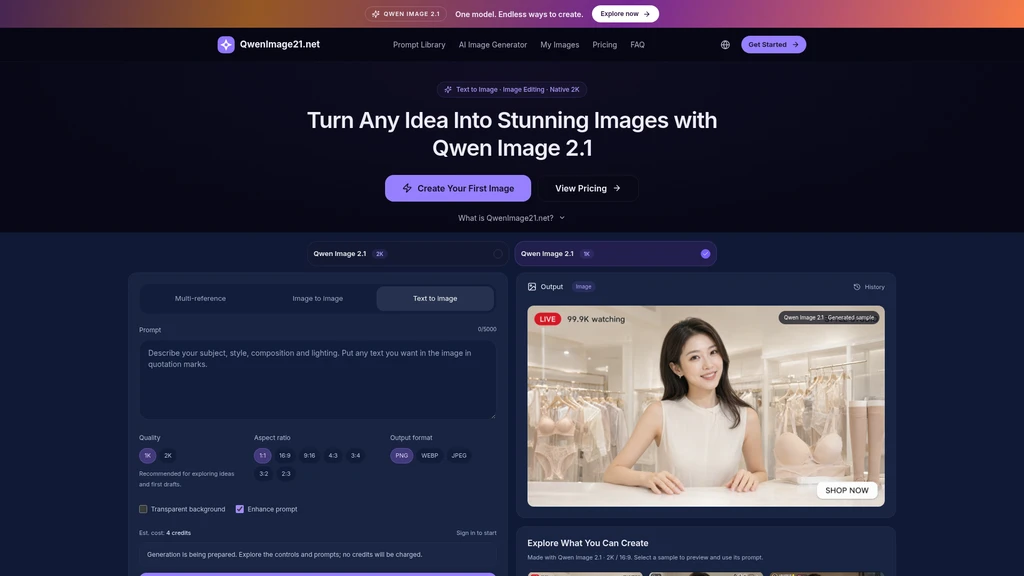
Qwen Image 2.1 - All-in-one text-to-image and image editing workflow with support for up to 10 reference images and 2K export
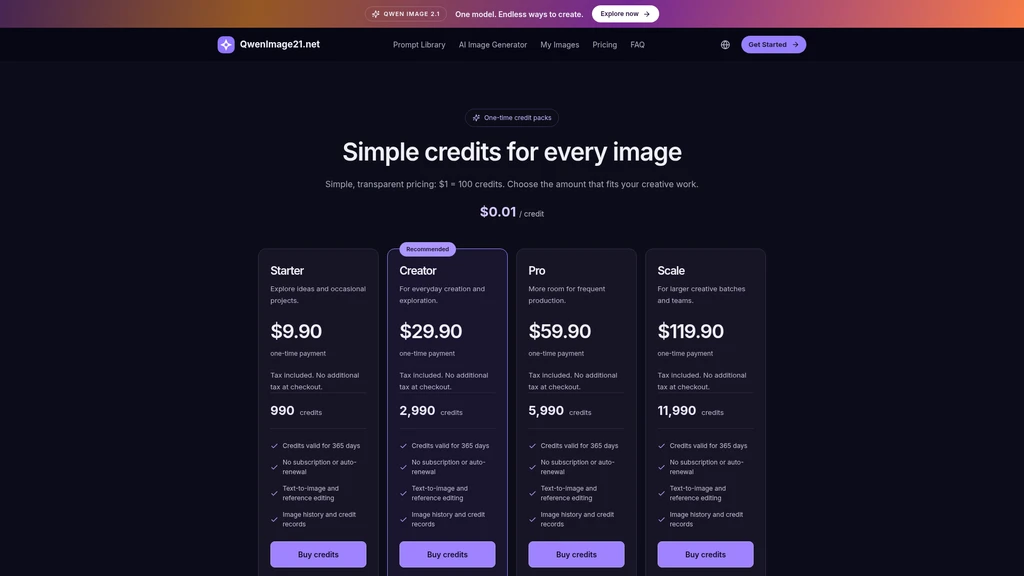
Launched on Sep 28, 2026Qwen Image 2.1 is an AI image generation platform that combines text-to-image creation and guided image editing in a single workspace. It supports long prompts up to 5000 characters, up to 10 reference images, and exports 1K/2K resolution files in PNG, WebP or JPEG formats with optional transparent backgrounds. This tool is built for designers, marketers, content creators, and teams that need to produce product imagery, posters, creative concepts, and design assets quickly without switching between multiple separate tools.
Related Content

Copy.ai Review 2026: AI Copywriting Made Easy
Our honest Copy.ai review for 2026. We test Content Agents, AI Workflows, pricing ($29-$249/mo), and compare it to Jasper and Writesonic. Find out if it's worth it for your marketing team.

Rytr Review 2026: Is This Budget AI Writer Worth It?
Our hands-on Rytr review for 2026. We test features, pricing, content quality, and compare it to Jasper & ChatGPT. Find out if Rytr is the best budget AI writing tool.

Word Changer - Free AI tool to rewrite and improve your writing instantly
Writing always using repetitive words or need to avoid plagiarism? Word Changer is a free AI writing assistant that instantly rewrites any text with richer vocabulary and appropriate tone. Get multiple versions with one click, adjust formality level, check readability - all for free!

Unite - AI-powered platform for romantic fantasies and dream couple moments
Explore romantic fantasies and create special moments for your dream couple. This AI-powered platform lets you generate personalized romantic content and experience exclusive AI-created romantic experiences.
Comments