Monthly visits
8,723
2026-10
Monthly growth +1,610.4%

OpenSubs - Transcribe, translate, edit, and burn subtitles in your browser

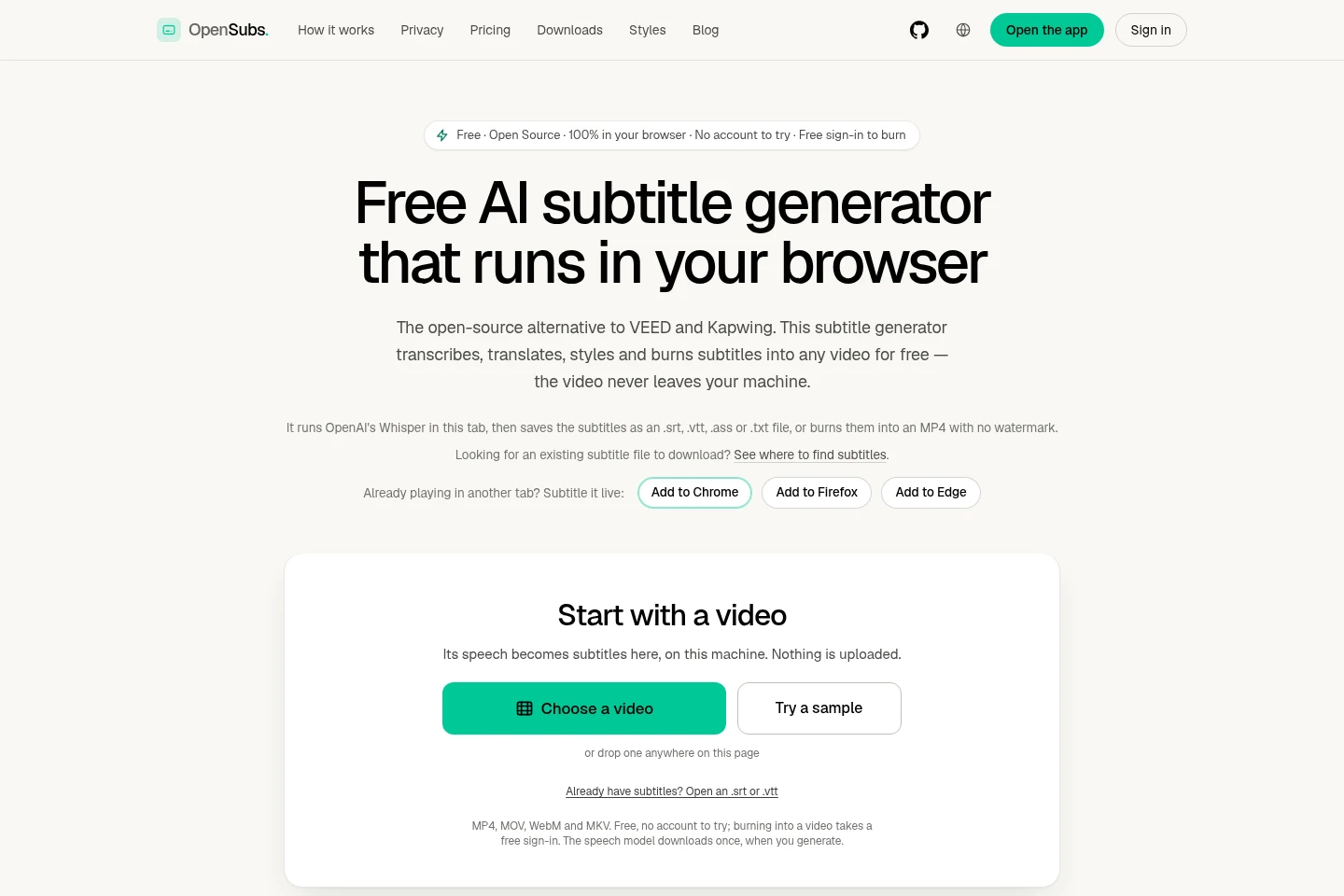
OpenSubs generates subtitles from video speech with Whisper running in the browser, then lets you translate, edit, style, and export them. Save SRT, VTT, ASS, or TXT files, or burn subtitles into MP4 without a watermark. Video processing stays on your machine; cloud translation is optional and paid with credits.

Visit WebsiteUpdate this product

0Views

Capabilities

Browser speech transcription

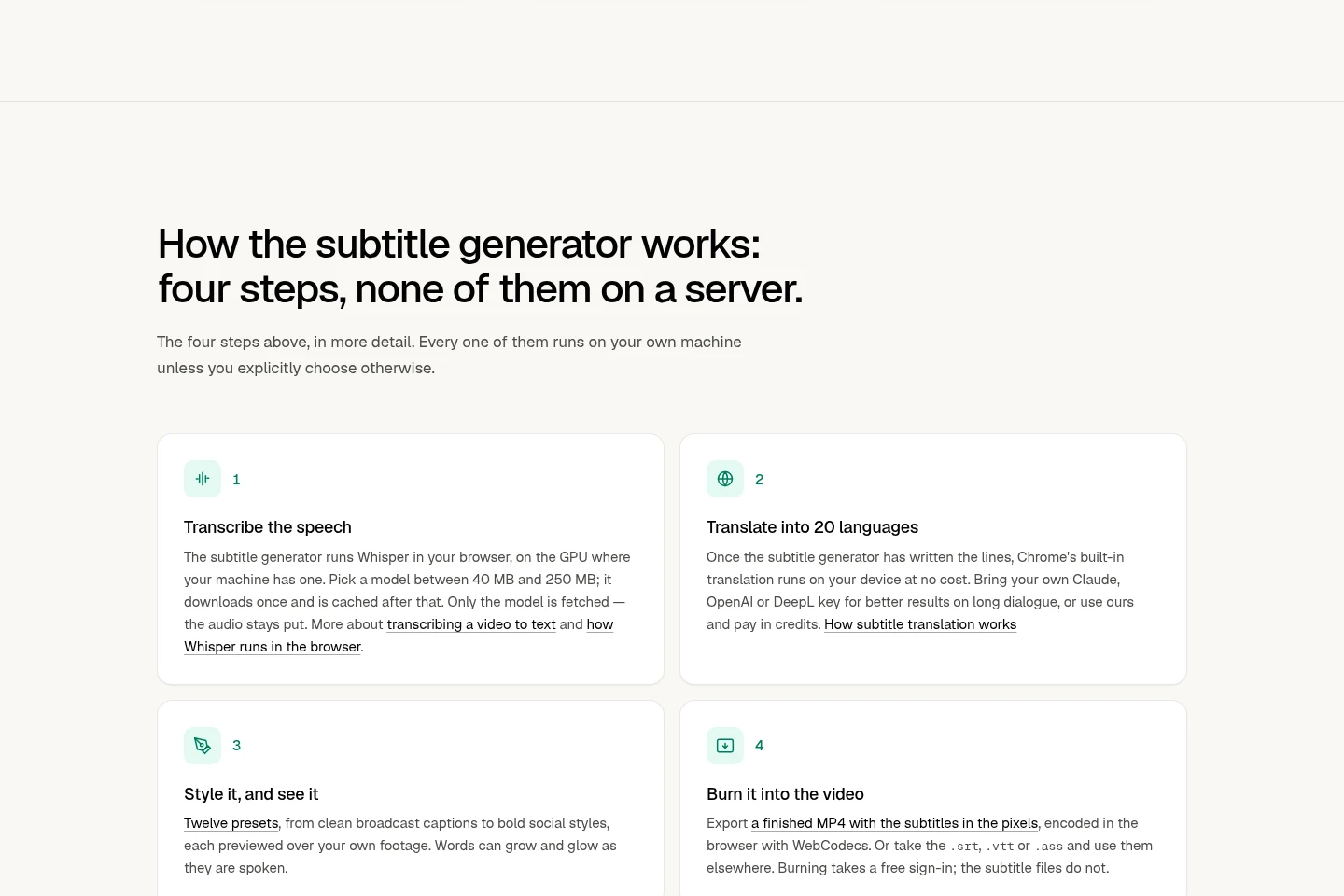
Transcribes speech from a video into timed subtitle cues using Whisper in the browser. Choose a model between 40 MB and 250 MB; it downloads once and is cached, while the audio stays on your machine.

Subtitle translation

Translates generated subtitle lines into other languages, including 20 languages on-device with Chrome's built-in translator. Cloud translation can use your Claude, OpenAI, or DeepL key, or OpenSubs credits.

Subtitle cue editing

Edits subtitle wording and timings and outputs revised cues for export or video burn-in. Open generated cues or existing SRT and VTT files, then rewrite, split, merge, add, delete, or retime cues.

Subtitle styling

Applies one of 12 subtitle presets and previews the result over your footage. Styles include word-by-word highlighting, with the selected appearance carried into exports.

Subtitle file and video export

Exports subtitles as SRT, VTT, ASS, or TXT, or burns them into a video file. MP4 burn-in uses browser encoding and requires a free sign-in; WebM is used where the browser cannot make MP4.


PricingFreemium

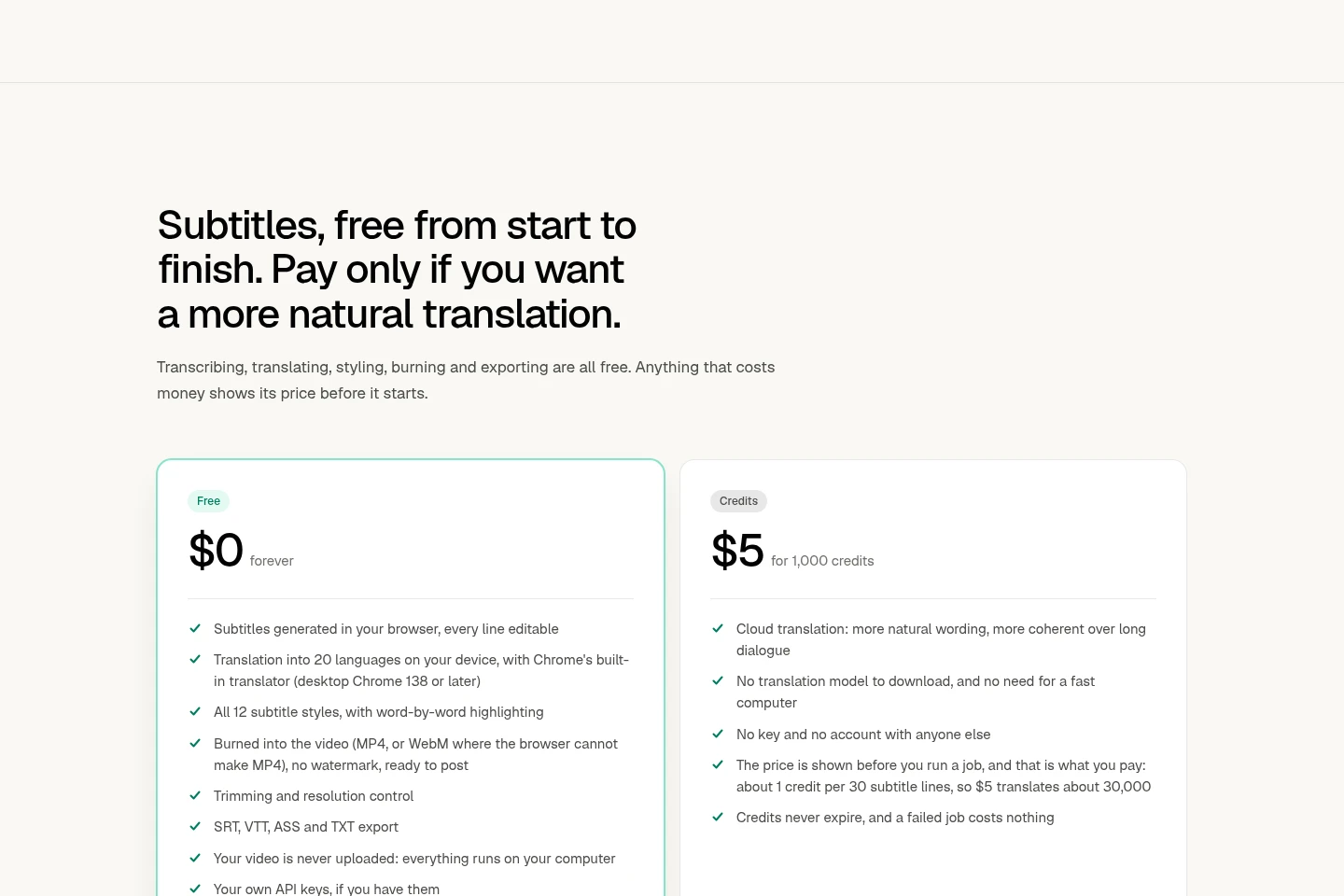
OpenSubs has a free plan and optional prepaid credits for cloud translation. Compare included on-device features with the credit price and approximate number of lines translated.

PlanPriceIncluded features and limits
Free

$0 forever

  • Transcription, translation, styling, burning, and export are free.

  • On-device translation covers 20 languages using Chrome's built-in translator.

  • Includes all 12 styles and word-by-word highlighting.

  • Exports SRT, VTT, ASS, and TXT; burned video has no watermark.

  • Burning video requires a free sign-in.

Credits

$5 for 1,000 credits

  • Credits pay for optional cloud translation.

  • The price is shown before a job starts and is the amount charged.

  • About 1 credit per 30 subtitle lines; $5 translates about 30,000 lines.

  • Credits never expire.

  • Failed jobs cost no credits.

Credit purchases are prepaid rather than a recurring subscription. Cloud translation is optional; the on-device translation option is free.

Use cases

Create timed subtitles from video speech

When a video needs captions, load an MP4, MOV, WebM, or MKV and run Whisper in the browser to create editable, timed subtitle cues. Export the result as an SRT file or another supported subtitle format.

Translate subtitles for another language

When viewers need subtitles in another language, translate generated lines on-device with Chrome's built-in translator or choose a cloud translation option. Export or display the original and translated lines together.

Burn subtitles into a finished video

When captions need to appear directly in the picture, style the cues and export a video with subtitles burned in. A free sign-in is required for burn-in, and the resulting MP4 has no watermark.

Limitations

  • Burning subtitles into a video requires a free sign-in; exporting subtitle files does not.

  • On-device translation with Chrome's built-in translator requires desktop Chrome 138 or later.

  • On iOS 17 Safari, the speech recognizer cannot run; the page says it works on iOS 26.

  • Linux desktop burn-in requires an ffmpeg build with the ASS filter, libass.

  • Cloud translation sends subtitle text to the selected provider; it is optional, and on-device translation sends no text away.

Alternatives

AutoSubtitles

Generate, edit, style, and export video subtitles in your browser

AutoSubtitles transcribes video audio into editable subtitles, then lets users adjust wording and timing, apply preset or custom styles, and export captioned video. It runs in a browser without signup. The free plan has a 10-minute video limit and watermark; Pro adds longer videos, translation, subtitle files, saved styles, and custom fonts.

  • Cloud
  • Freemium
  • FreeFree
  • ProPro: $9/month
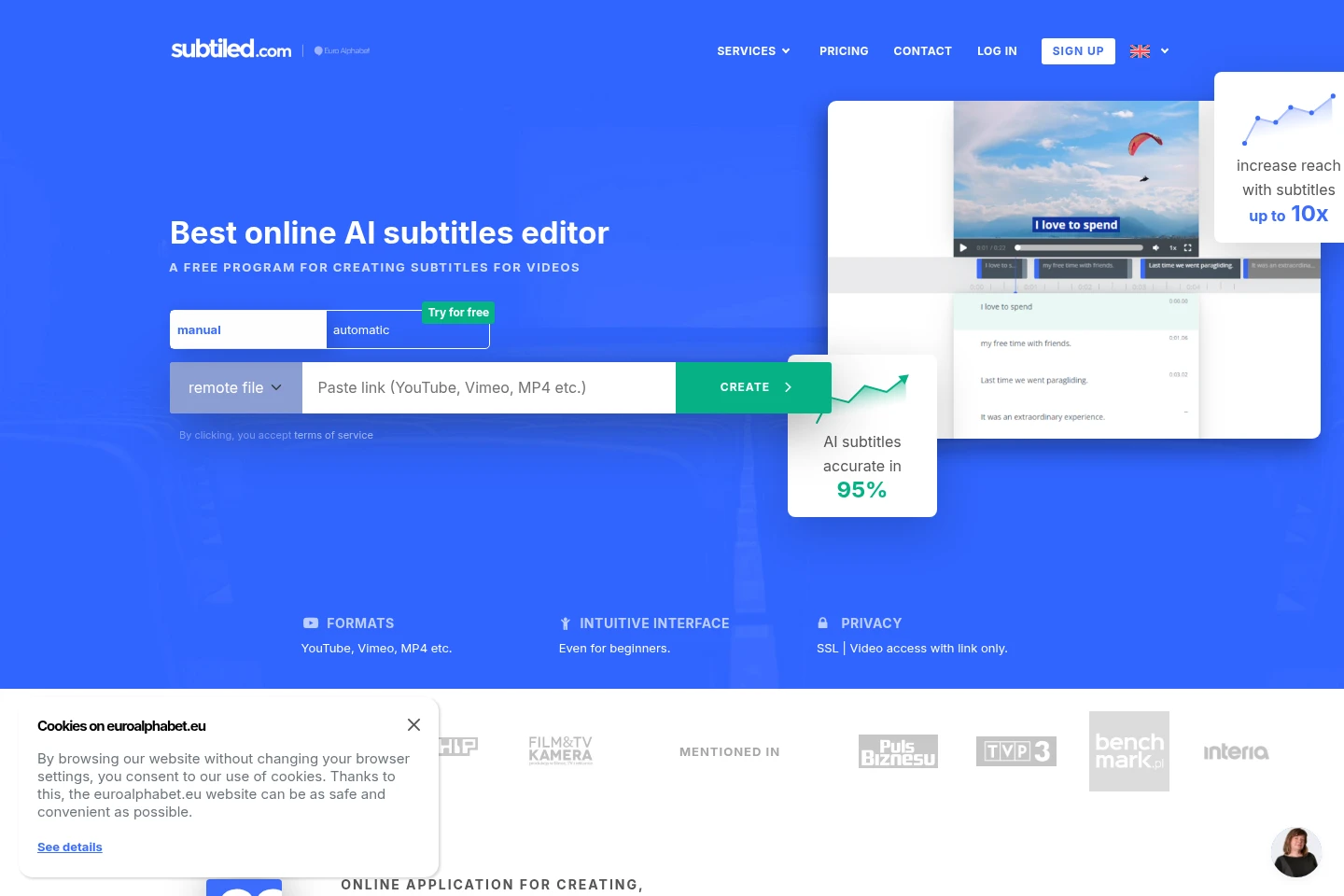
  1. Subtiled

    Create edit sync subtitles

    Free
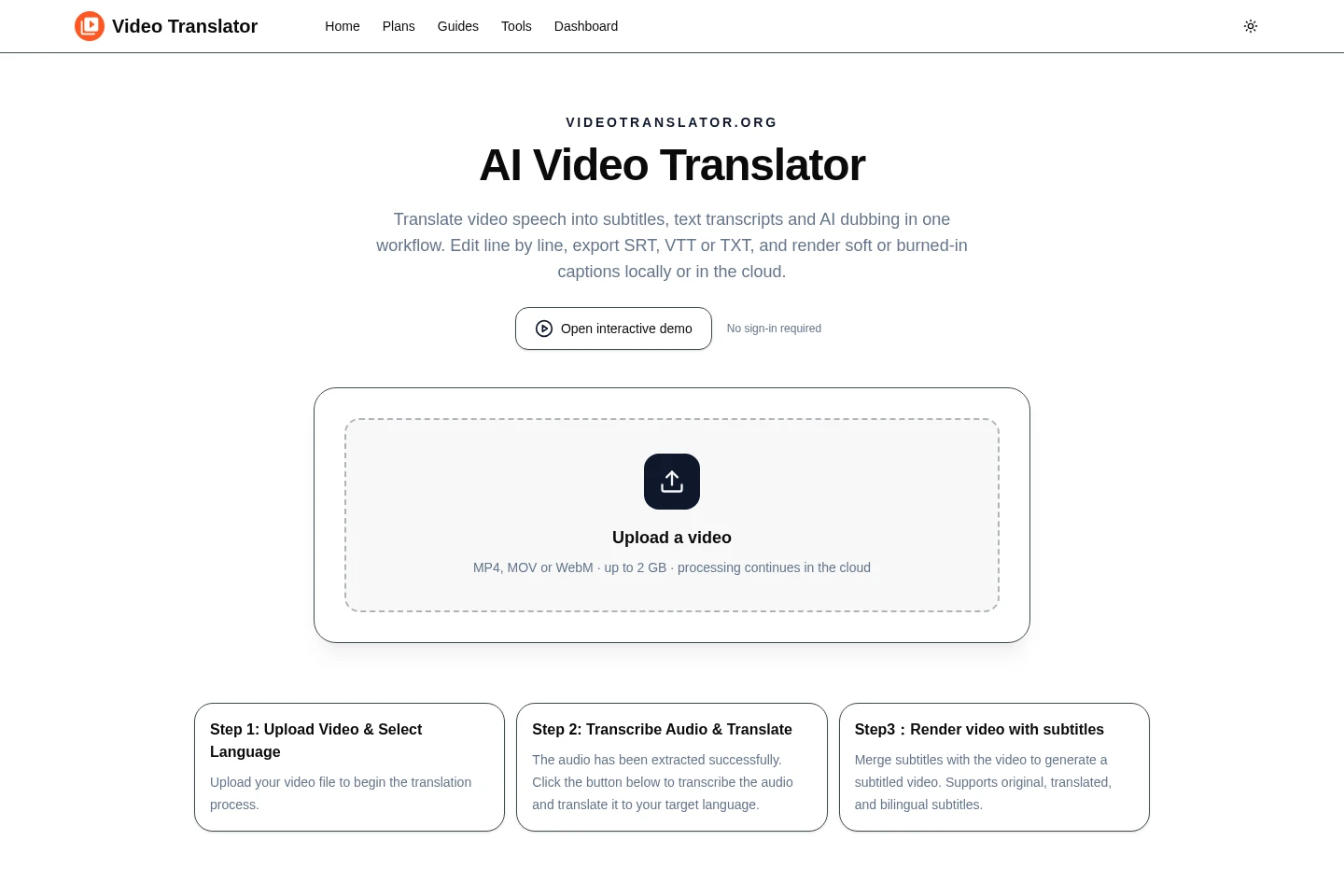
  2. VideoTranslator.org

    Turn video speech into translated subtitles and dubbed videos

    Interactive Demo · $0
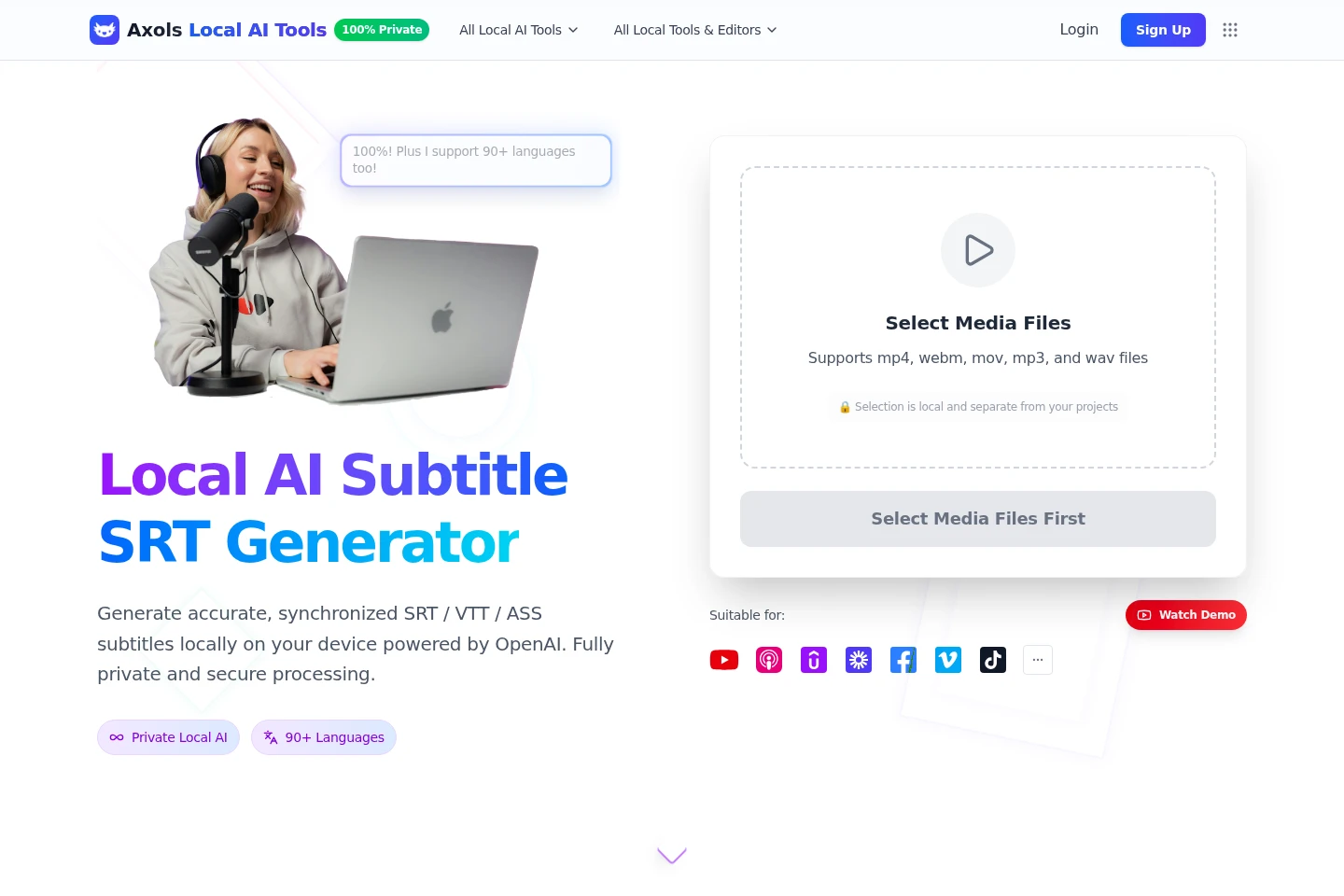
  3. Local AI Subtitle SRT Generator

    Generate and edit subtitles locally in your browser

    Basic · Forever free
  4. Freesubtitles.ai

    Effortless transcription and translation at your fingertips

    Freemium
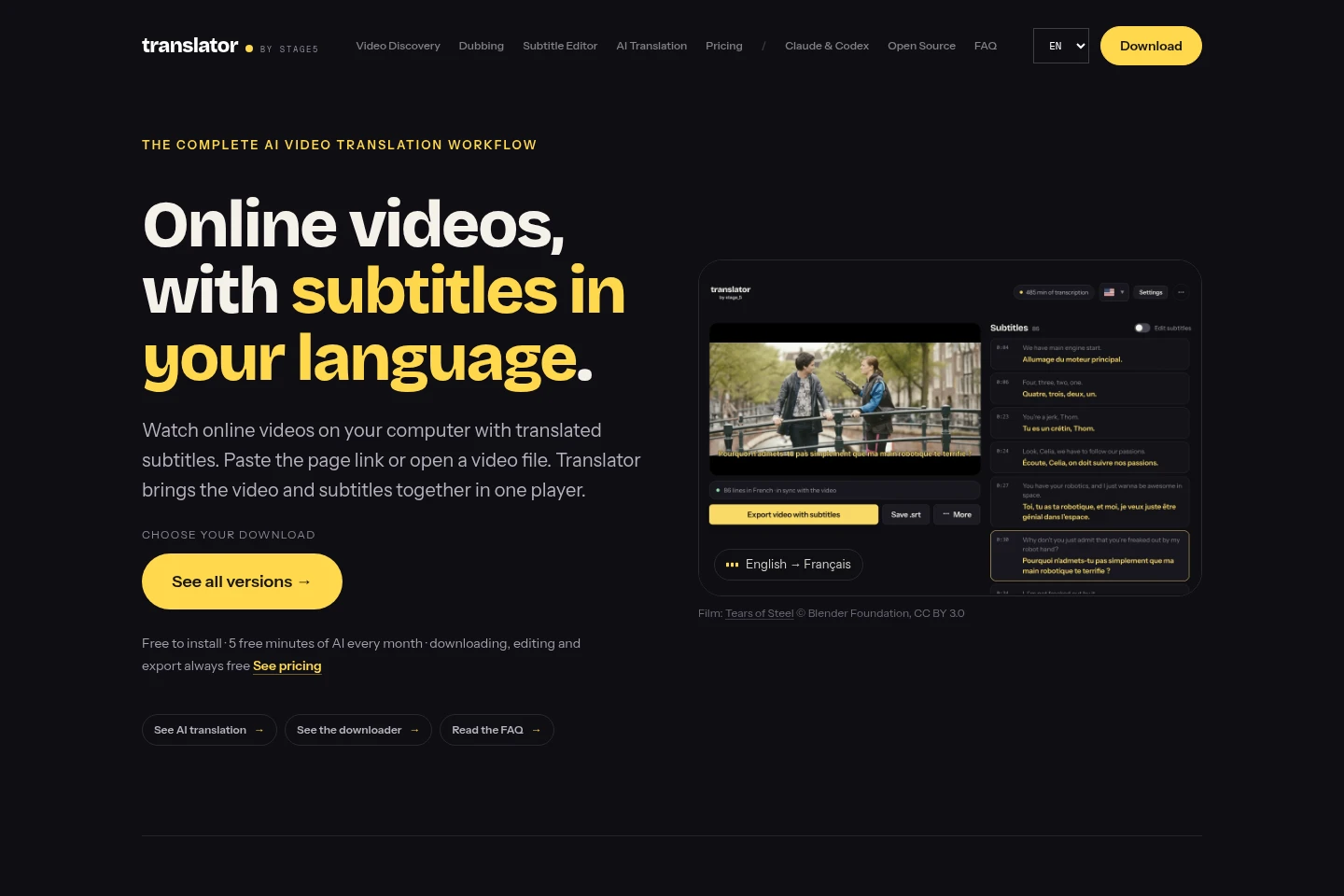
  5. Translator

    Translate video subtitles, edit them, and dub on desktop

    Free core app · US$0

Who it is for

  • Video creators who need editable captions without uploading footage

  • Subtitle editors correcting cue text and timing in SRT or VTT files

  • Developers scripting subtitle generation through a command-line workflow

FAQ

Does OpenSubs upload my video?

No, video processing runs on your machine in the browser. The site says there is no upload endpoint; only text or trimmed audio may leave if you explicitly choose a cloud translation or transcription option.

Which video and subtitle formats can I use?

The app accepts MP4, MOV, WebM, and MKV video, and can open existing SRT or VTT subtitles. Subtitle exports include SRT, VTT, ASS, and TXT; video burn-in exports MP4, or WebM where MP4 encoding is unavailable.

Do I need an account to try it?

No account is needed to try transcription or export subtitle files. Burning subtitles into a video requires a free sign-in.

How does translation work, and what does it cost?

Chrome's built-in translator can translate on-device at no cost. Cloud translation is available using your Claude, OpenAI, or DeepL key, or OpenSubs credits; the displayed job price is charged, about one credit per 30 subtitle lines.

Do purchased credits expire?

No, credits never expire. A failed cloud translation job costs nothing.

Comments

Please sign in to leave a comment.
No comments yet. Be the first to share your thoughts!